How to set up IPTV on every device, step by step
How to set up IPTV is the same job everywhere: put a player app on the screen, type in the login from your TVZon IPTV welcome e-mail, and let the channel list and programme guide load. What changes is where the app comes from and which menu you tap. Below is one numbered section per device, written against the current menus, from the Fire TV Stick in most Canadian living rooms to the MAG box in the basement. If you do not have a login yet, order a plan or request the 24-hour free trial and the login arrives by e-mail; support by e-mail and WhatsApp is there 24/7 if a screen does not match what you read.
Pick your device: Fire TV Stick · Android TV / Google TV · Apple TV · Samsung Smart TV · LG Smart TV · Roku · Chromecast · Windows and Mac · iPhone and iPad · Formuler · MAG box · Nvidia Shield
Before you start: how to get IPTV login details and what they look like
Your welcome e-mail holds two ways to sign in; use whichever the app asks for.
- Xtream Codes login - three fields: a server URL, a username and a password. Most TV apps, including IPTV Smarters Pro and TiviMate, prefer this.
- M3U URL - a single long web address that contains your username and password. Simpler apps, some Smart TV players and Roku players take this.
Both point to the same account. Type them exactly as sent: a missing letter in the server URL or a stray space after the password is the usual cause of a failed first login. Our post on M3U vs Xtream Codes explains the difference. Two more things must be true on every device: it is online, and your plan has a free screen (a single-screen plan plays on one device at a time).
Fire TV Stick
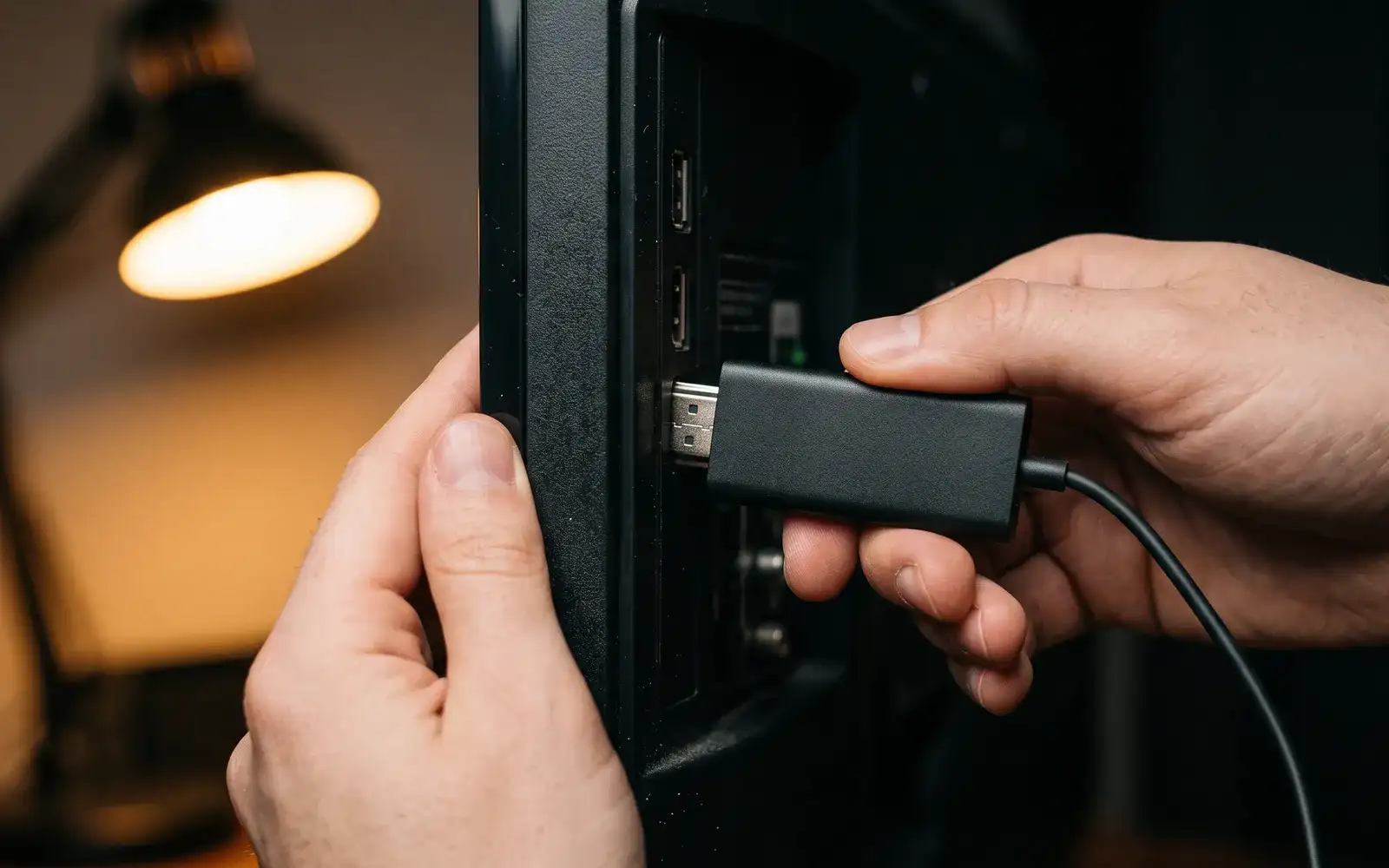
IPTV Firestick setup is the most searched in Canada, and the Fire TV Stick 4K is the device we recommend when someone asks what to buy. Firestick IPTV runs through IPTV Smarters Pro or TiviMate; where an app is not in the store, the Downloader app fetches it from the developer's website.
- On the Fire TV home screen, select the search icon and type the name of the player app (IPTV Smarters Pro or TiviMate). If it appears, install it and skip to step 4.
- If it does not appear, open Settings > My Fire TV > Developer options and allow installs from unknown sources (newer models: enable it for the Downloader app specifically). Install Downloader from the Appstore.
- In Downloader, enter the player developer's official website address and install the app from there. Never install a player from a link in a forum.
- Open the player. In IPTV Smarters Pro choose Login with Xtream Codes API; in TiviMate choose Add playlist > Xtream Codes.
- Type the server address, username and password exactly as they appear in your welcome e-mail. Name the playlist anything.
- Wait for the channels and the programme guide to download, then open Live TV.
Older Fire TV Stick Lite models can stutter on 4K streams and large playlists; keep one player installed and clear its cache from Settings > Applications monthly. Detailed guides: IPTV Smarters Pro and TiviMate.
Android TV and Google TV
Covers Android TV boxes, Google TV dongles and the Sony, TCL, Hisense and Philips TVs that run Android built in.
- Open the Google Play store on the TV and search for TiviMate or IPTV Smarters Pro. Install one.
- Open it. TiviMate: Add playlist > Xtream Codes. Smarters: Login with Xtream Codes API.
- Enter the server URL, username and password from your welcome e-mail.
- Allow the channel list and guide to load; TiviMate takes a minute the first time.
- Press the back button to reach the channel grid and start watching.
Use a network cable if the box has a port and the router is far away; Wi-Fi at the far end of a house is the number one cause of buffering on Android boxes.
Apple TV
IPTV on Apple TV uses a dedicated player from the App Store; the apps are different from the Android ones but take the same login.
- Open the App Store on the Apple TV and search for an IPTV player (our IPTV apps compared guide lists the current options for Apple TV).
- Install it and open it. Choose to add a playlist or provider.
- Pick Xtream Codes if offered, and enter server URL, username and password. If the app only takes a URL, paste the M3U URL from your e-mail instead.
- Wait for the channels to load, then open the programme guide.
Typing on Apple TV is slow; use the iPhone keyboard prompt that appears when a text field is selected, or the app's "enter on your phone" option where available.
Samsung Smart TV
IPTV Smart TV setup on a Samsung runs without any extra hardware on sets from roughly 2017 onward.
- Press the Home button and open Apps. Search for an IPTV player (several are listed in the Samsung store; see IPTV apps compared).
- Install and open the player. Most Samsung players ask for a playlist URL or an Xtream login.
- Enter the details from your e-mail. For URL-only players, paste the M3U URL exactly.
- Some players show a device code and ask you to add the playlist on a website from your phone or computer; follow the on-screen address, enter the code and the M3U URL, then return to the TV.
- Allow the channel list to load and open the guide.
If a player is missing from your region's store, the TV's Settings > General > System Manager > Smart Hub location setting may need to be changed and the TV restarted; e-mail support and we walk you through it.
LG Smart TV
LG sets running webOS install players from the LG Content Store.
- Press Home, open the Content Store and search for an IPTV player.
- Install and open it. Choose to add a playlist or provider.
- Enter the Xtream login or paste the M3U URL from your e-mail. Code-based players work as on Samsung: add the playlist on the website shown, using the code on screen.
- Wait for the channels and guide to populate.
LG remotes with a pointer make typing easier; the on-screen keyboard also accepts a USB keyboard if you have one.
Roku
IPTV on Roku works through a handful of player channels that accept an M3U URL; the Xtream login format is less common here, so have the M3U URL from your e-mail ready.
- From the Roku home screen, open Streaming Channels and search for an IPTV player channel.
- Add the channel and open it.
- Most Roku players show a code and a web address. On a phone or computer, open that address, enter the code and paste your M3U URL.
- Return to the Roku; the playlist loads automatically.
- Open the channel list. The guide may take a few minutes to fill the first time.
Roku players are more basic than TiviMate on Android; if you want a richer guide and recording, a Fire TV Stick or Android box on the same TV is the better long-term home.
Chromecast
Chromecast with Google TV behaves like the Android TV section above: install TiviMate or IPTV Smarters Pro from the Play store on the dongle, enter the Xtream login, done. Older Chromecasts without a remote cannot run apps themselves; for those:
- Install an IPTV player on your Android phone or iPhone (see iPhone and iPad).
- Sign in with the login from your e-mail and open a channel.
- Tap the cast icon in the app and select the Chromecast.
- The stream plays on the TV while the phone acts as the remote.
Casting uses the phone's connection to start the stream, so keep it on the same Wi-Fi network.
Windows and Mac
IPTV on a computer suits a home office, a dorm or a second screen.
- Install a desktop IPTV player: IPTV Smarters Pro has Windows and Mac versions; VLC, which most computers already have, plays an M3U URL directly.
- For Smarters, open it and choose Login with Xtream Codes API, then enter the server URL, username and password.
- For VLC, choose Media > Open Network Stream and paste the M3U URL from your e-mail.
- Press play; the channel list appears in the playlist panel.
A browser alone will not play the streams; you need a player application.
iPhone and iPad
- Open the App Store and search for an IPTV player; the IPTV apps compared guide lists current iOS options.
- Install it and open it. Add a provider or playlist.
- Enter the Xtream login or paste the M3U URL from your e-mail. Copying the URL from the e-mail on the same device avoids typos.
- Open the channel list or guide.
On a single-screen plan, remember the phone counts as a screen: stop the stream on the phone before starting one on the TV.
Formuler
Formuler boxes ship with their own player, which is one of the smoothest ways to watch live TV.
- Set the box up on the network, by cable where possible.
- Open the built-in player from the home screen.
- Choose to add a portal or playlist, then Xtream Codes (or paste the M3U URL if asked for a URL).
- Copy the server address, username and password out of the welcome e-mail into the three fields.
- Let the channels and guide load, then press the guide button on the remote.
The dedicated guide and favourites buttons on the Formuler remote are the reason to own one; set favourites in the first evening.
MAG box
A MAG box uses a portal address rather than an app and asks for its own MAC address to be registered.
- On the box, open Settings > System settings > Servers > Portals.
- Enter the portal address we provide. E-mail [email protected] with your box's MAC address (printed on the underside) so we can link it to your plan.
- Save, exit and restart the box.
- The channel list loads from the portal after the restart.
If the box shows a blank screen after restart, check the portal address for typos and confirm the box has a working internet connection in Network settings.
Nvidia Shield
The Shield runs Android TV, so follow the Android TV steps: install TiviMate or IPTV Smarters Pro from Google Play, choose the Xtream login, enter the details from your e-mail. The Shield's processor makes it the smoothest Android device for 4K streams and very large channel lists, and it supports a wired network connection; use it.
Troubleshooting the first login
| What you see | Likely cause | Fix |
|---|---|---|
| "Invalid credentials" or "login failed" | A typo in the server URL, username or password | Copy from the e-mail again; check for spaces at the end |
| Channels load, nothing plays | Screen limit already in use, or the device is offline | Stop the stream on the other device; check the connection |
| Guide is empty | EPG still downloading | Wait a few minutes, then refresh the guide in the app |
| Buffering every few seconds | Weak Wi-Fi or a busy connection | Move closer to the router or use a cable; see IPTV not working |
| App missing from the store | Regional store listing | Try an alternative from IPTV apps compared, or e-mail support |
How to set up IPTV: frequently asked questions
How to set up IPTV on a Firestick?
Search the Fire TV store for IPTV Smarters Pro or TiviMate, install it, choose the Xtream Codes login and enter the server URL, username and password from your welcome e-mail. If the app is not in the store, install it through Downloader from the developer's official site. Full steps are in the Fire TV section.
Can I get IPTV on a Smart TV without a box?
Yes. Samsung and LG TVs install players from their own stores, and Android or Google TV sets use Google Play. A box is only needed for an old TV without apps; see do you need an IPTV box.
Does IPTV work on Roku?
Yes, through player channels that accept an M3U URL, usually entered via a code on a website. The experience is more basic than on Fire TV or Android; see the Roku section.
Which app is best for IPTV on Apple TV?
Apple TV has several capable players in the App Store; the choice depends on whether you want a simple list or a full guide. The IPTV apps compared guide explains the current options.
How do I get IPTV in Canada in the first place?
Request the 24-hour free trial or choose a plan in the IPTV subscription hub. Your login arrives by e-mail, and you follow the section above for your device.
How many devices can I set up?
As many as you like. The plan limits how many play at the same time: one on single-screen plans, two or three on the multi-screen plans.
Ready to set up?
Start with the 24-hour trial: the login reaches your e-mail, and the guide for your device above does the rest.